

AI ART KNOW-HOW
How to prepare AI-generated artwork for printing
A practical pre-print check for ChatGPT images, Midjourney artwork and other AI creations. Find the best file, catch the oddities and choose a sensible size.
By the ArtFart team · Published · 5 min read
THE SHORT VERSION
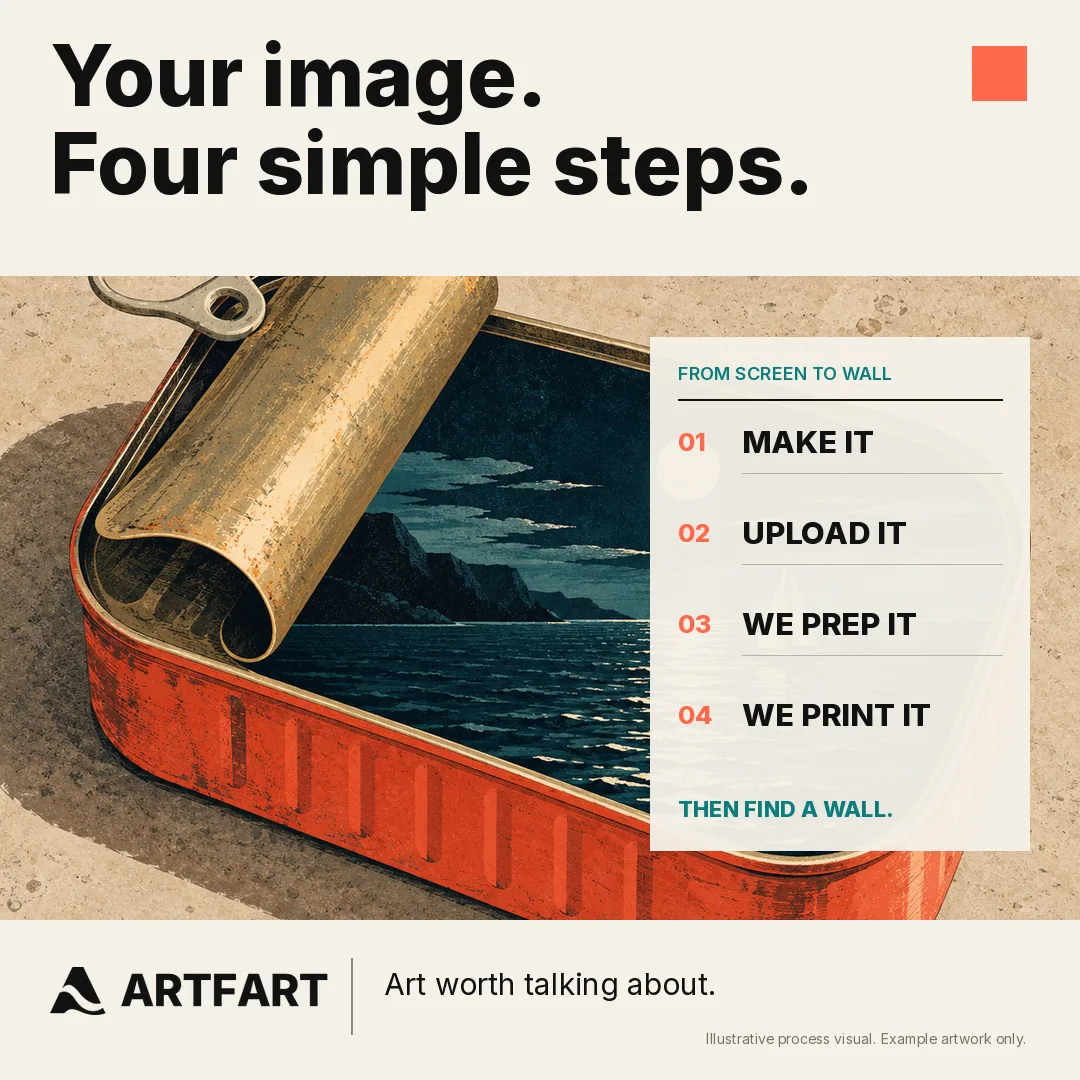
Save the original image, inspect the details at full size and upload that file rather than a screenshot. Then use the crop preview and resolution check to choose the print size.
Start with the original AI image download
If you created an image in ChatGPT, Midjourney or another AI image tool, save the finished image directly from that service. Do not take a screenshot unless it is genuinely the only copy left. Screenshots can be smaller, cropped or compressed and may include interface clutter that was never invited to the artwork.
Keep the largest original version you have. Sending the image through social media or a messaging app can create a reduced copy, so go back to the source before printing. The filename may be nonsense. The pixels are what matter.
Inspect the image before it leaves the screen
Zoom in and look carefully at faces, hands, eyes, lettering, repeated patterns and small objects. AI artwork can look convincing at first glance while hiding a spare finger, a bent window or a word from a language nobody speaks. A larger print gives those details more room to introduce themselves.
Check the edges too. Some generators create soft borders, unfinished corners or objects that stop abruptly at the frame. If you edited or extended the image, inspect the joins and repeated textures. Fix anything distracting in your image tool before uploading the final version.
Choose a practical file type
ArtFart accepts JPG, PNG and TIFF images up to 25MB and no more than 80 million pixels. A high-quality JPG is suitable for most finished artwork and photographs. PNG is useful when that is the original format, although transparent areas appear against white in the print preview.
TIFF originals can be uploaded, but TIFF colour conversion and preview preparation need production preflight. Use a JPG or PNG if you want the complete on-screen crop and buying journey. Export a finished flattened image rather than a working file full of layers.
Decide what shape the finished print should be
AI images are often created in proportions chosen for a screen or social post. That shape may not exactly match an A4, A3, A2 or A1 sheet. ArtFart also offers three square sizes, which suit artwork created in a 1:1 format.
Choose portrait, landscape or square and position the crop around the important part of the image. Watch faces, signatures, lettering and decorative borders. A tighter crop also uses fewer of the original pixels, so settle the composition before deciding how large to print it.
Let the image resolution guide the print size
Changing a number in an image file from 72 to 300 pixels per inch does not create new detail by itself. The useful question is how many real pixels remain after cropping and how far they must stretch across the finished print.
ArtFart calculates the estimated source resolution at your selected size. It labels 240 pixels per inch or above as Excellent and 150–239 as Looking good. Below 150, the site recommends a smaller size and asks you to acknowledge the warning unless an approved enlargement provides enough resolution.
Enlargement can help prepare a small image, but it cannot guarantee detail that was absent from the original. Inspect faces and lettering again after any enlargement. Artificial intelligence is talented. Clairvoyance remains patchy.
Expect a print to look like a print
A bright screen shines light towards you while paper reflects the light in the room. The same artwork can therefore feel different in print. Screen brightness, colour settings, room lighting and your chosen paper all affect what you see.
Keep an embedded colour profile when your editing software offers that option. Avoid making last-minute colour changes on an unusually bright phone screen. Semi Gloss gives a smooth finish with a slight sheen, Ultrasmooth has a smooth matt finish and Satin Canvas adds a fine canvas character.
The final AI art printing checklist
Use the original downloaded file. Inspect details at full size. Export as JPG or PNG for the easiest online preview. Check that the file is within the upload limits. Choose the print shape, review every edge of the crop and read the resolution advice for your selected size.
Finally, choose the surface that suits both the image and the room. If the crop or quality check leaves you unsure, email info@artfart.co.uk before ordering. We would rather answer a sensible question than print a beautifully reproduced six-fingered surprise.
Ready to make it real?
Upload your image and find the size and finish that work for it.
Upload Your ArtAsk the ArtFart teamA bit more know-how.
All guides →
How to scan old photos for printing
Turn an old family photograph into a printable file with sensible scanning, gentle editing and a print size that respects the detail in the original.
Read the guide →
Should I upscale my AI image before printing?
Learn when an AI image needs upscaling for print, what ArtFart’s 2× tool changes and which details to check before choosing the enlarged file.
Read the guide →