

FILE KNOW-HOW
JPG, PNG or TIFF: which file should I use for printing?
Choose the right image format for printing photos, AI art and illustrations. Understand JPG compression, PNG transparency and ArtFart’s TIFF preview limits.
By the ArtFart team · Published · 5 min read
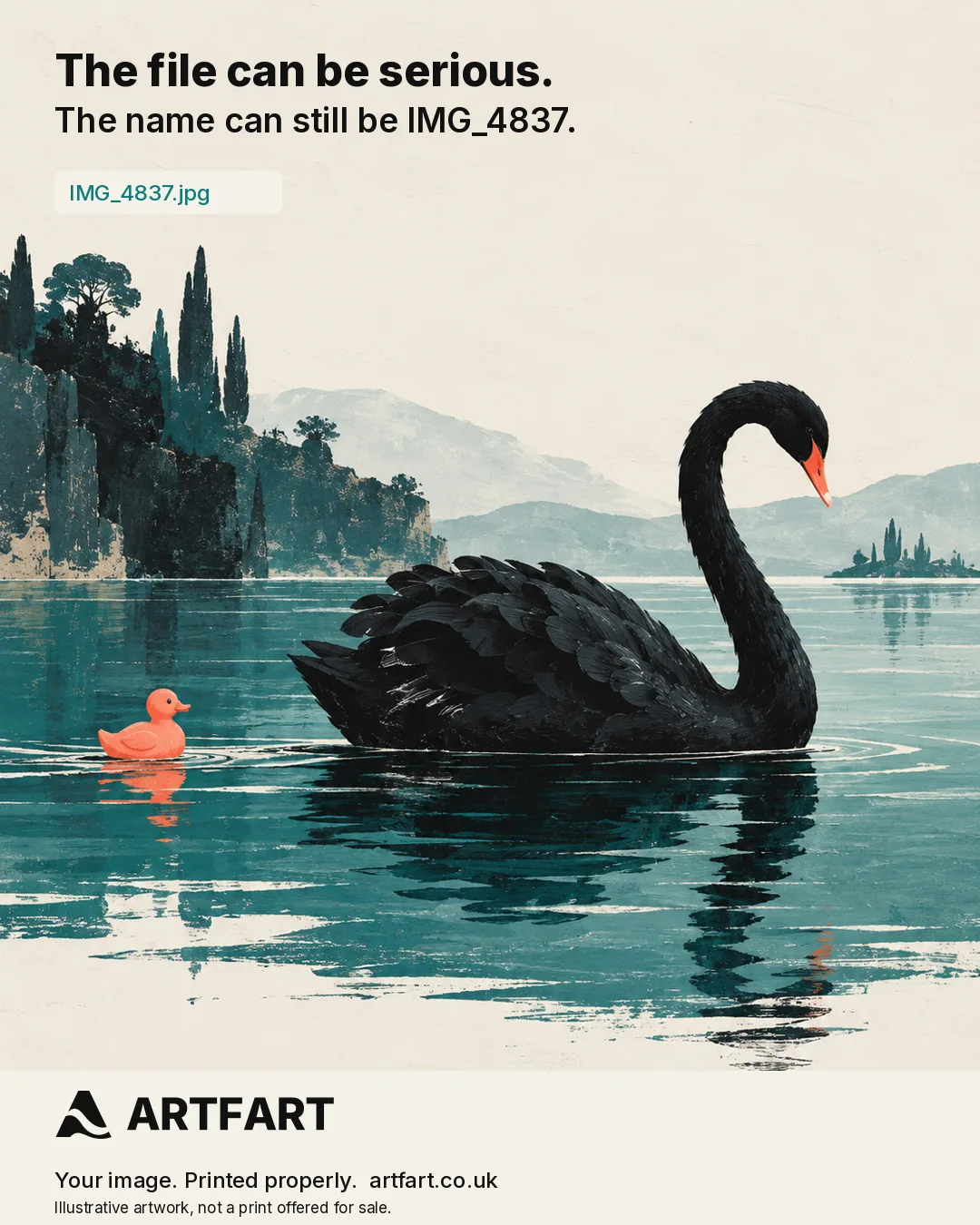
THE SHORT VERSION
Use the best original download or export you have. A high-quality JPG is usually convenient for photographs, while PNG suits crisp illustrations and artwork with transparency. Standard TIFFs are accepted, but choose a JPG or PNG for ArtFart’s complete on-screen crop preview. Changing the file extension cannot create missing detail.
The quick choice for an ArtFart order
For most photographs, a high-quality JPG is a sensible starting point. For an illustration with clean lines, flat colours or transparency, PNG is often a useful choice. If your best AI artwork download is already a good JPG or PNG, upload that original rather than converting it just to make the filename look more professional.
ArtFart accepts JPG, PNG and standard TIFF files up to 25MB and 80 million pixels. JPG and PNG support the full on-screen preview and crop journey. A TIFF original can be retained for production, but its colour conversion and preview need production preflight. Export a JPG or PNG copy if you want to position and review your crop yourself online.
Those are the practical differences for this website. There is no special prize for arriving with the heaviest file. The printer does not judge you by the size of your attachment.
JPG: a practical choice for photographs
JPG and JPEG refer to the same everyday image format. It uses lossy compression, meaning it reduces the stored data to make a smaller file. At a high quality setting, a JPG can still be very suitable for a photographic print. At a low setting, you may see blocky patches, rough edges or smudged detail.
Export once from your best original or edited master, using a high quality setting. Check the actual exported file at full size, especially around hair, fine branches, text and smooth skies. Avoid repeatedly editing and re-exporting a compressed JPG when you still have a better master available.
A photograph received through a messaging app or copied from social media may be a smaller, more compressed version. Ask for the original camera file or full-resolution download where possible. Saving the small copy as a TIFF will not reverse the compression that has already happened.
PNG: useful for crisp artwork and transparency
PNG uses lossless compression and supports transparency. It can be a good fit for digital illustrations, lettering and areas of solid colour where you want to preserve clean edges. It may also be much larger than a JPG of a detailed photograph, so check the upload limit before ordering.
Lossless describes how the format stores the pixels it is given. It does not mean the picture is automatically high resolution or sharper than every JPG. A tiny PNG still contains a tiny picture. A converted blurry JPG remains a blurry picture in a more spacious container.
ArtFart shows PNG transparency against white in the print preview and keeps your original upload untouched. Check that pale lettering, soft edges and cut-out subjects look correct on that white background. Transparency is not an instruction to print on a clear material or add a coloured background. If the background is part of the design, include the one you want in your exported artwork.
TIFF: keep the master, check the ordering route
TIFF is widely used in print and archiving. Depending on how it is saved, it can contain layers, higher bit depths and different compression types. It is not automatically uncompressed or lossless simply because the name ends in .tif. Adobe documents both lossless compression options and JPEG compression for TIFF workflows.
Keep your full-quality master if you work in TIFF, PSD or another editing format. Make a separate JPG or PNG export for the straightforward ArtFart preview rather than replacing your master. Our ordinary uploader does not accept PSD, PDF, RAW, HEIC or SVG files, so those need a real export to a supported image format first.
For colour-critical photographic work, an exhibition collection or an ongoing artist printing arrangement, contact us before sending large production files. We can discuss the appropriate file hand-off and checks. Our professional service page explains that route. The online uploader is useful, but it is not a substitute for every production conversation.
Pixel dimensions matter more than megabytes
Pixel dimensions tell you how many pixels the image contains across its width and height. Megabytes describe the storage space the file takes up. Compression, layers and bit depth can change the storage size without changing the pixel dimensions. A 20MB file is not necessarily twice as detailed as a 10MB file.
When you choose an ArtFart size, we assess the usable pixels after cropping. The same original may work well as a small print but look softer when spread across a much larger sheet. Cropping tightly around one face also leaves fewer pixels for the finished print than using the whole photograph.
Do not reduce the pixel dimensions merely to make a file upload faster if you need that detail for your chosen size. If a file is over the limit, start with a clean high-quality export from the master and inspect the result. Ask us for advice if meeting the limit would compromise the work.
Export the image. Do not just rename it.
Changing picture.heic to picture.jpg does not convert the contents into a JPEG. Use your photo or design app’s export or save-a-copy command and select the format there. Then open the exported file to check it works and looks as intended.
For ordinary online ordering, an RGB JPG or PNG is the simplest route. If you have a CMYK production file or a particular colour-managed requirement, speak to us before converting it blindly. A random profile change is not a reliable way to make the print match your screen.
Likewise, changing a resolution label to 300dpi without adding pixels does not create extra image detail. And taking a screenshot of the original usually gives you fewer useful pixels, not a clever shortcut. The file can remain IMG_4837. We are interested in what is inside it.
Does the format affect the 2× upscale option?
Yes. The automatic ArtFart upscaler has a narrower limit than ordinary uploading: RGB JPG or PNG, up to 5MB and six million pixels. You select an intended print size first. When that size needs more pixels, an eligible file can be enlarged and compared with the original before you choose which version to print.
A valid TIFF or a larger JPG may be accepted for printing without being eligible for automatic enlargement. Do not heavily compress a good original just to unlock an upscale button. A smaller print or a discussion with our team can be the better choice. More processing is not a compulsory stage of making something good.
The file-ready checklist
Keep the original master. Export a high-quality JPG or PNG for the complete online preview, check the pixel dimensions and stay within 25MB and 80 million pixels. Open the export, inspect fine detail and confirm that any transparent areas look right against white.
Upload that file, review the crop and choose a size that suits the available detail. Then choose your paper finish. If your work needs specialist file handling or a professional production arrangement, contact info@artfart.co.uk before ordering. A short conversation can save a very long filename ending in FINAL_really_final_v7.
Ready to make it real?
Upload your image and find the size and finish that work for it.
Upload Your ArtAsk the ArtFart teamA bit more know-how.
All guides →
How to scan old photos for printing
Turn an old family photograph into a printable file with sensible scanning, gentle editing and a print size that respects the detail in the original.
Read the guide →
Should I upscale my AI image before printing?
Learn when an AI image needs upscaling for print, what ArtFart’s 2× tool changes and which details to check before choosing the enlarged file.
Read the guide →